

How to Install the ICunity App on Android
ICunity can be installed on your mobile phone like a real app — without visiting the Play Store or App Store.
This guide explains exactly how to install the ICunity app on Android in simple steps.
No technical knowledge required.
Are you ready to transform your financial future?
Sign Up TodayNo credit card required • Free demo account • Instant activation
What Is the ICunity App?
The ICunity app is a web-based app that works like a normal mobile application:
- Opens in full-screen mode
- Has its own app icon
- Launches faster than a website
- Does not require app store downloads
Once installed, it behaves just like a native app.
How to Install ICunity App on Android (Chrome)
Step 1: Open ICunity Website
Open Google Chrome and visit:
🔹 Step 2: Wait for the Install Button
After a few seconds, an “Install App” button will appear at the bottom of your screen.

🔹 Step 3: Tap “Install App”
Tap the install app button.
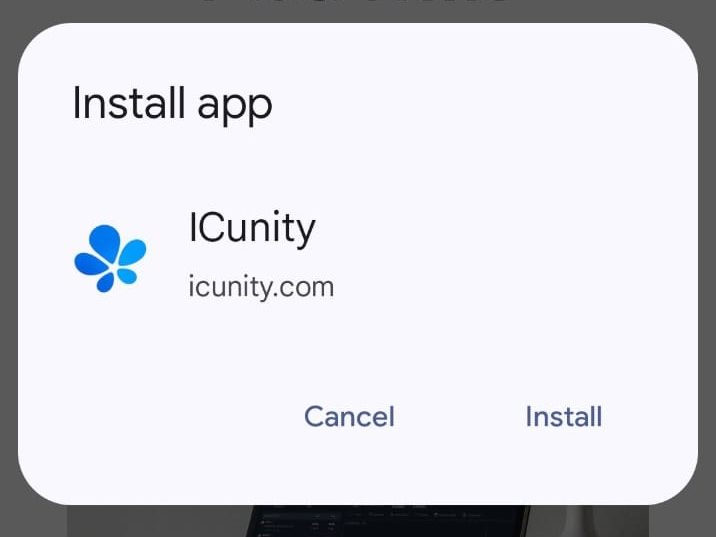
A real install popup will appear.
🔹 Step 4: Confirm Install
Tap Install.
That’s it 🎉
The ICunity app is now installed on your phone.

🔹 Step 5: Open the App
Tap the ICunity icon from your home screen.
The app will open directly on the login page.
❓ Frequently Asked Questions
Is this a real app?
Yes. It works like a native app but does not require app store downloads.
Does it take storage space?
Very little — much less than normal apps.
Is it safe?
Yes. ICunity uses HTTPS and secure authentication.
Can I uninstall it?
Yes. Just remove the app icon like any other app.